




To facilitate multi-member collaboration for teams and enterprises, shopdora has implemented a Main and Sub-Account management system. This feature is designed to resolve the limitation of single-user logins, enabling team members to log in independently and collaborate efficiently while ensuring data security and proper access control.
1. Understanding Main and Sub-Accounts
1.1 The Relationship
The shopdora platform permits only one active session per account. If another user logs into the same account, the currently logged-in user will be automatically signed out. To enable simultaneous access for multiple users, you can acquire Sub-Account licenses by upgrading your plan. Sub-Accounts function as extensions of the Main Account, streamlining multi-user access for companies and teams.
1.2 Subscription Plans & Quotas
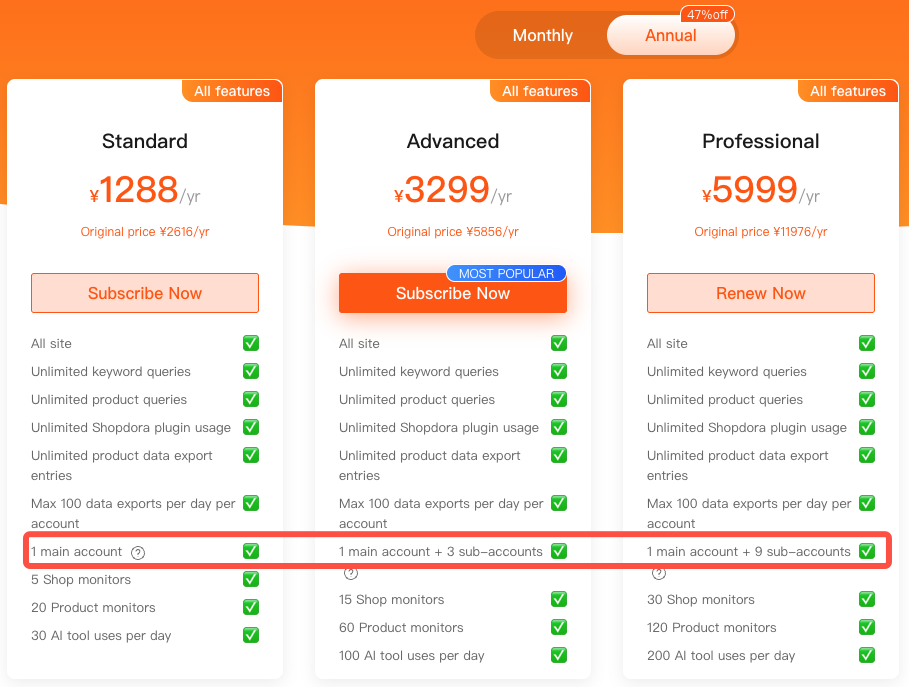
We offer various subscription plans, each with a different allocation of Sub-Accounts:
| Plan Name | Main Accounts | Sub-Accounts | Total Independent Accounts |
|---|---|---|---|
| Standard | 1 | 0 | 1 |
| Advanced | 1 | 3 | 4 |
| Professional | 1 | 9 | 10 |
Key Points:
- Additional Sub-Accounts can be purchased at any time with any annual plan.
- Sub-Accounts can be used independently across different regions, functioning like new, separate accounts.
2. Roles and Permissions: Main vs. Sub-Accounts
2.1 Main Account Holder
By default, any account registered on the platform is a Main Account. The Main Account holder possesses full administrative control over all associated Sub-Accounts and is typically a company owner or manager. Key responsibilities include:
- Sub-Account Administration: Create, log into, manage, activate, deactivate, and delete Sub-Accounts.
- Permission Settings: Configure data visibility and access permissions between Sub-Accounts.
- Profile Management: Edit Sub-Account information and reset passwords. (Note: Sub-Account users cannot change their own passwords).
- Security Management: When an employee leaves the company, the Main Account holder can disable or delete their Sub-Account to prevent unauthorized data access.
❗Important: To log into a Sub-Account as the Main Account holder, use the Sub-Account’s username combined with the Main Account’s password.
2.2 Sub-Account User
Sub-Accounts are created and managed by the Main Account holder, with quotas determined by the subscription plan. They are intended for use by team members and employees. Key features and limitations include:
- Full Functionality: Access to all features is consistent with the Main Account’s subscription plan.
- Shared Quotas: Monitoring limits and other quotas are shared with the Main Account.
- Password Restrictions: Users cannot change their own account password.
- No Billing Access: Users do not have permission to manage subscriptions or billing.
- Simplified Interface: The “Shopdora Membership” and “Sub-Account Management” menus are not visible in the Management Center.
3. How to Manage Sub-Accounts
3.1 Creating a New Sub-Account
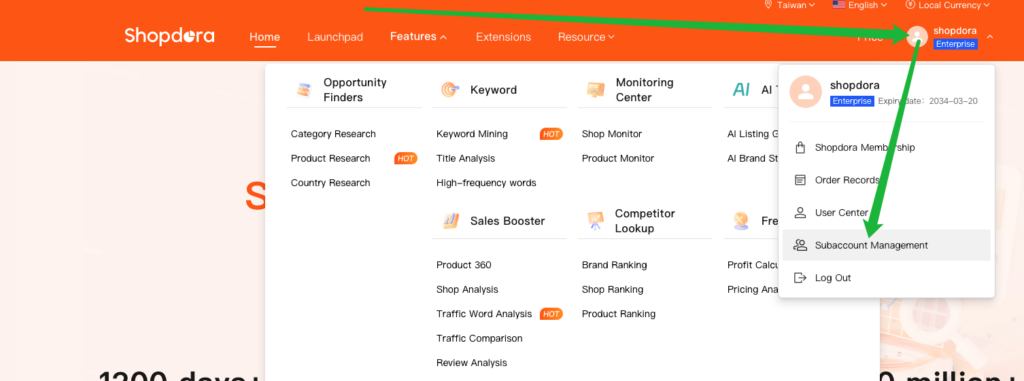
- Navigate to Management: From your personal center, click on “Subaccount Management.”
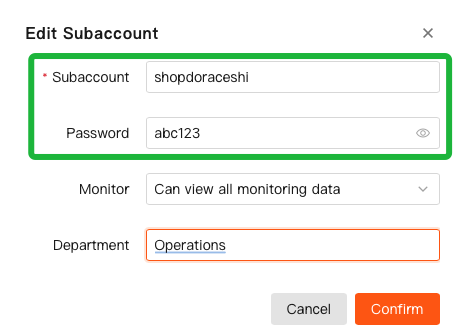
- Enter Details: Click “Add Sub-Account” and fill in the required information.
- Unique Username: The system will verify that the chosen username is unique across the entire platform.
- Naming Convention: Usernames must be 32 characters or fewer.
- The name cannot consist of numbers only and must include at least one letter.
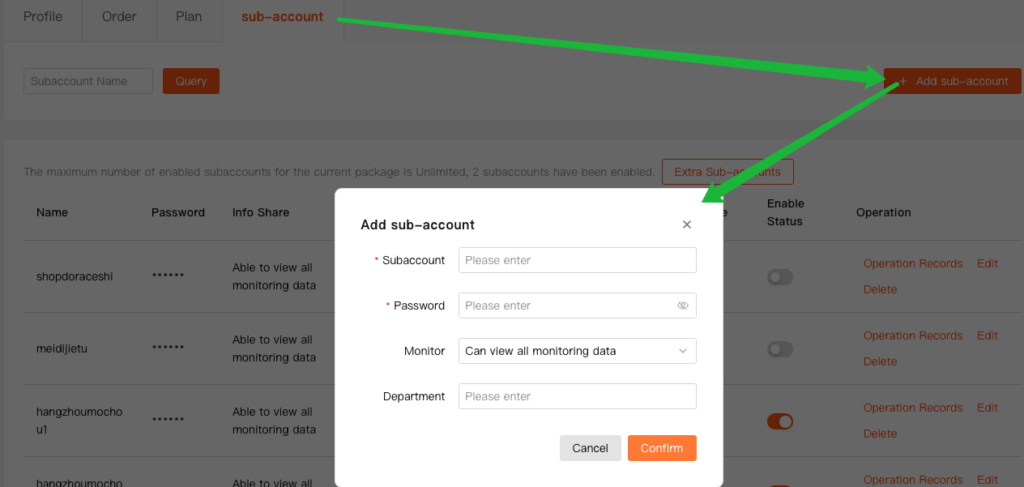
- Confirm to Complete: Once all information is entered, click Confirm to create the Sub-Account.
3.2 Login and Access
Newly created Sub-Accounts will appear on the “Sub-Accounts” page. The Main Account administrator can then share the username and password with the designated user, who can use these credentials to log in.
3.3 Activating and Deactivating Sub-Accounts
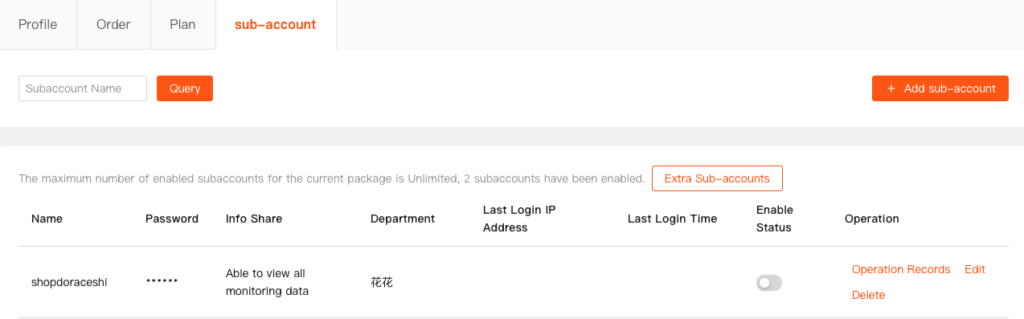
The Main Account holder can manage the status of Sub-Accounts from the “Sub-Accounts” page:
- Activation: Sub-Accounts are Active by default upon creation and can be used immediately. No manual activation is needed.
- Deactivation: If a Sub-Account is deactivated, the user will be unable to log in or use the service. The Main Account holder can reactivate the account at any time to restore access.
4. Impact of Subscription Changes on Sub-Accounts
4.1 Downgrading Your Plan
When the main account subscription is downgraded and the sub-account quota is reduced, the system will automatically enable or disable sub-accounts based on the updated plan limits.
For example, if there were originally 9 sub-accounts and the downgraded plan only supports 3, the system will randomly keep 3 sub-accounts active, while the remaining 6 will be deactivated.
4.2 Upgrading Your Plan
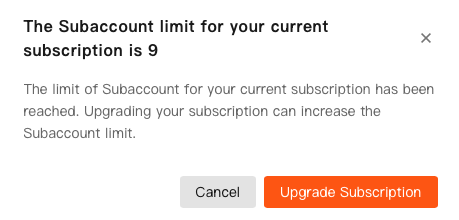
If you are not on an annual plan, you will not have the permission to add Sub-Accounts. Attempting to click “Add Sub-Account” will trigger a notification prompting you to upgrade your subscription to unlock