

A high-quality product listing is essential for attracting buyers and improving conversion rates. Shopdora’s AI Listing Generator feature leverages big data, AI technology, and Shopdora’s keyword database to help sellers quickly create or optimize product listings. This improves operational efficiency and strengthens market competitiveness.
1. Core Value
- Efficient Generation
Quickly generate or rewrite product listings. Significantly reduce time spent on content creation. - Multi-Language Support
Automatically translate listing content to support expansion into multiple marketplaces. - Data-Driven Optimization
Built on Shopee keyword databases and user review insights. Ensure listings are optimized for search visibility and buyer appeal.
2. Step-by-Step Instructions
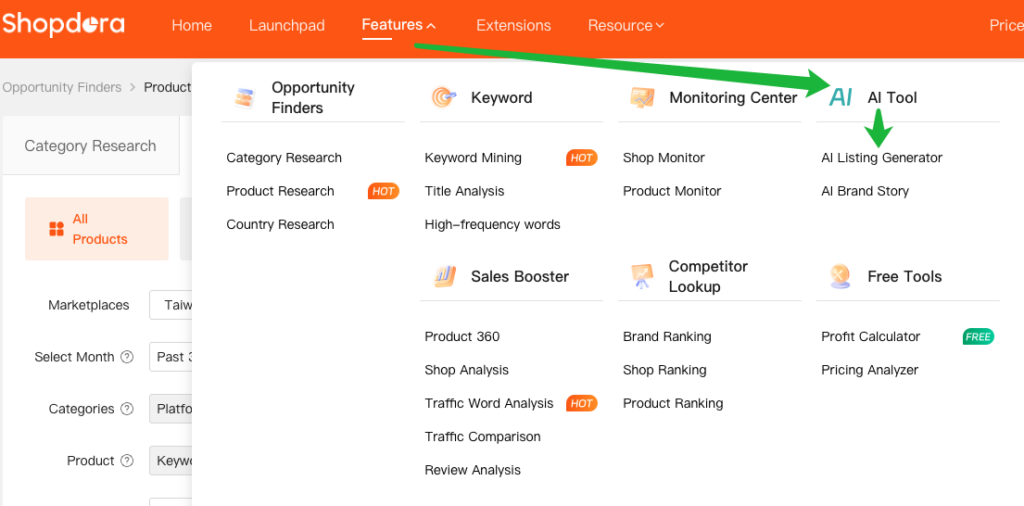
- Step 1: Access the AI Listing Generator Page
- Navigate to AI Tool → AI Listing Generator
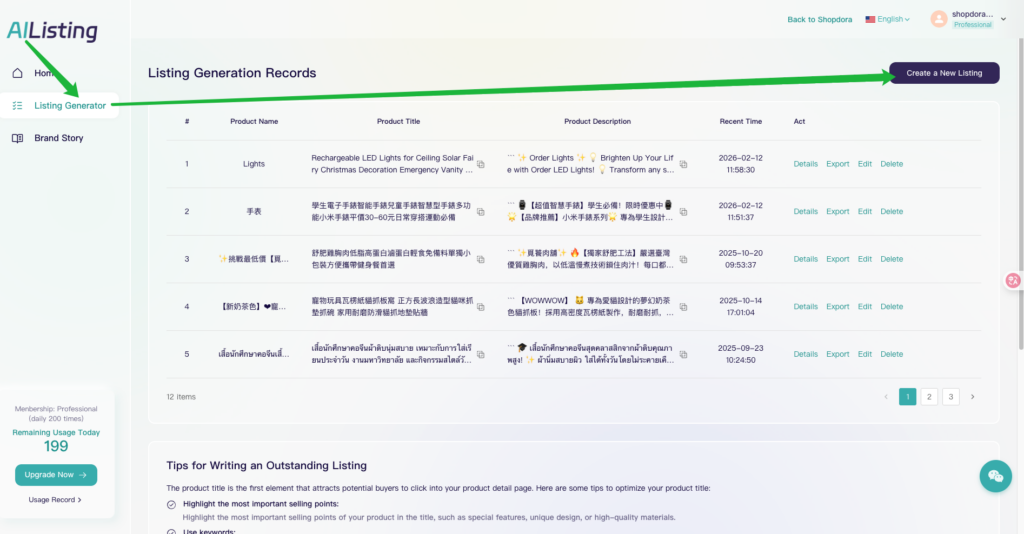
- Step 2: Create a New Listing
- Choose a Listing Creation Method
3. Creation Method
Shopdora provides two creation modes:
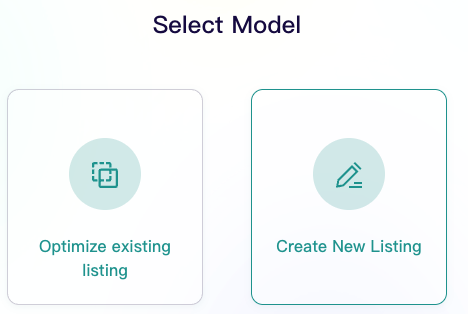
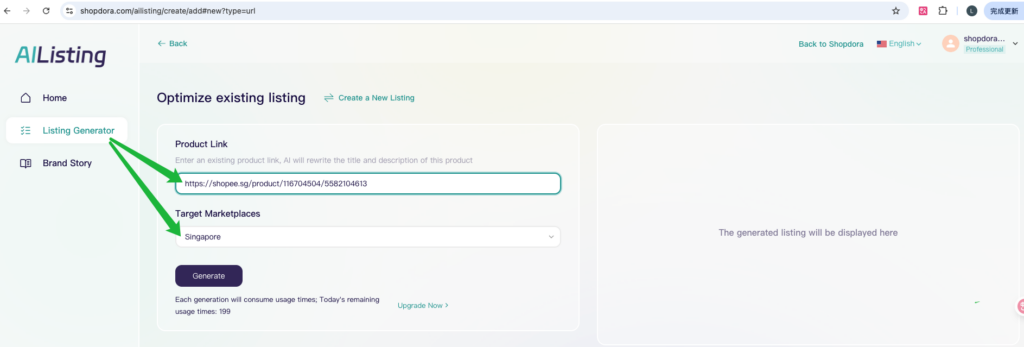
Method 1: Optimize existing listing
Suitable when there is a reference listing that requires optimization.
Steps:
- Paste the product link into the designated input field.
- Select the target marketplace.
- Click Generate.
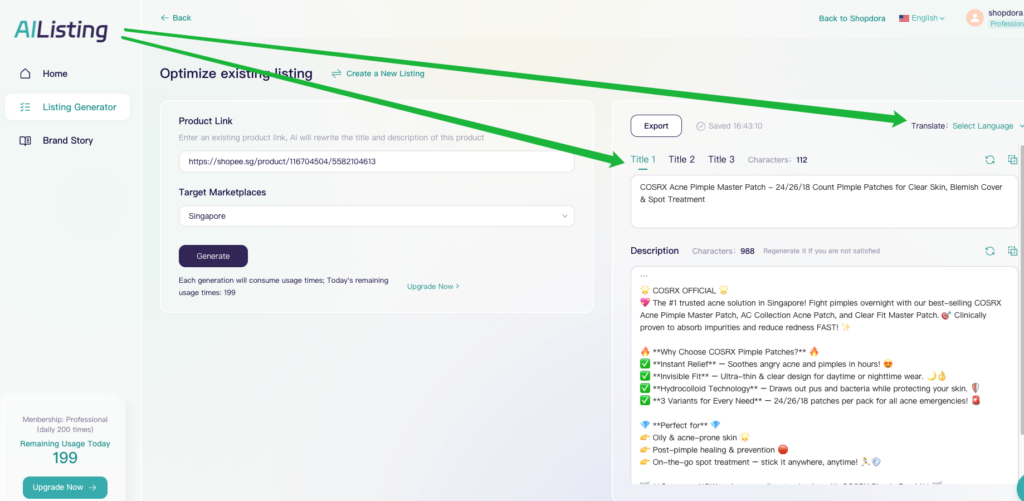
- The system will generate the listing within approximately 2 minutes.
- Multiple language versions will be available for switching and selection.
Method 2: Create New Listing
Suitable for creating a completely new listing.
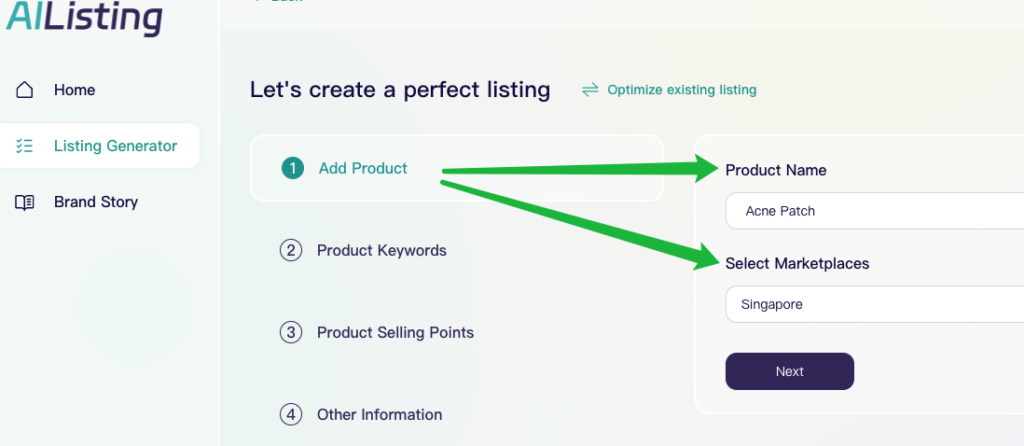
I. Add Product
- Input the product name.
- Select the target marketplace.
II. Add Product Keywords
- Product Keywords
- Option 1:Manually enter relevant Product Keywords.
- Option 2:Select keywords directly from the Shopee keyword database and import them in one click.
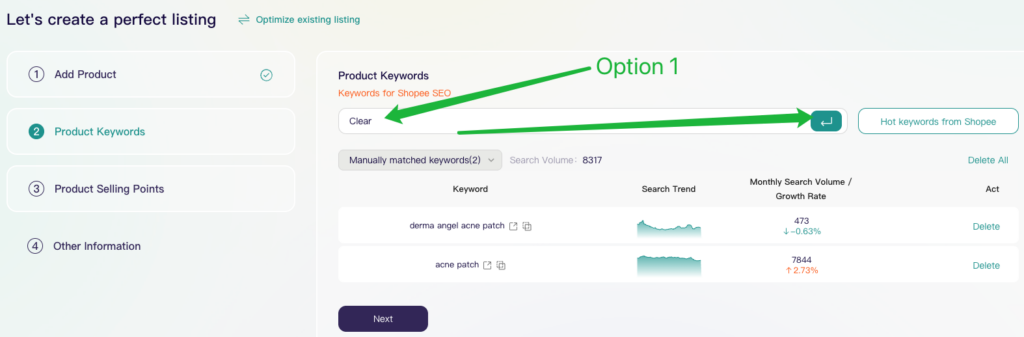
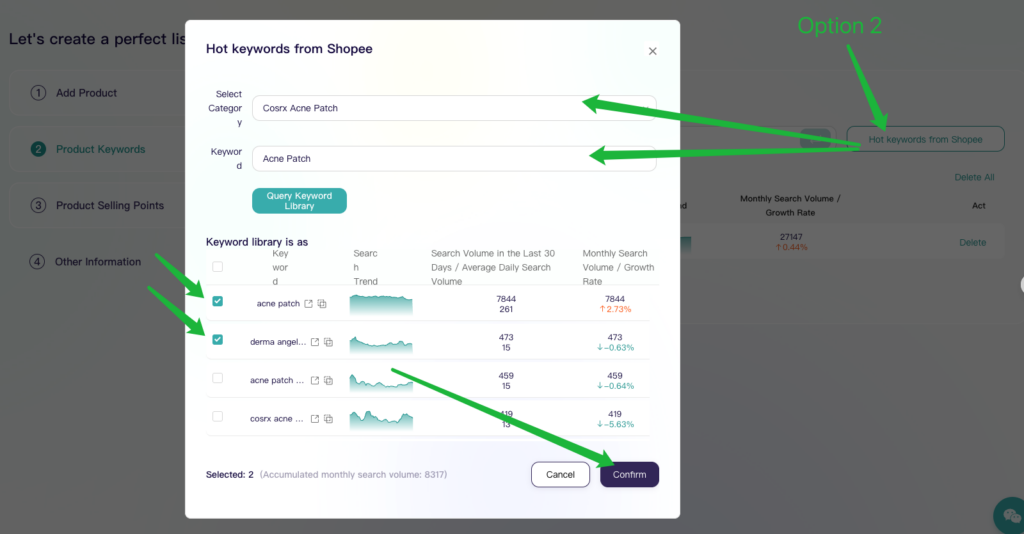
Using high-search-volume keywords helps improve listing exposure.
III. Define Product Selling Points
- Manually enter key selling points.
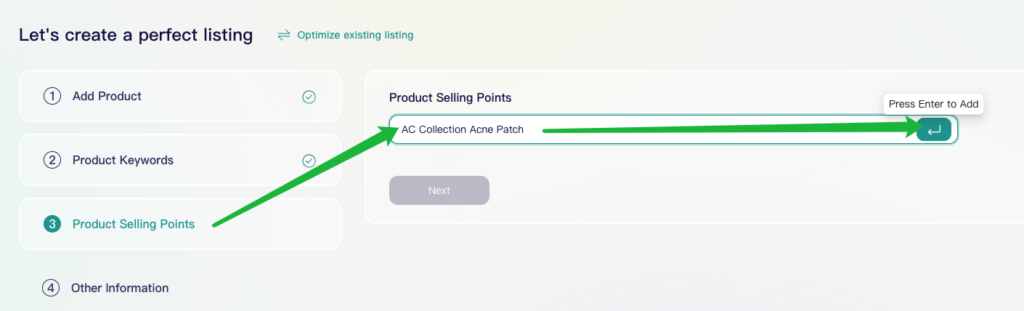
- You can also analyze user reviews from existing listings to extract authentic selling points.
- Select and import relevant points to enhance persuasiveness.
IV. Complete Additional Product Information (Optional)
- Providing more detailed information results in richer and more comprehensive listing content.
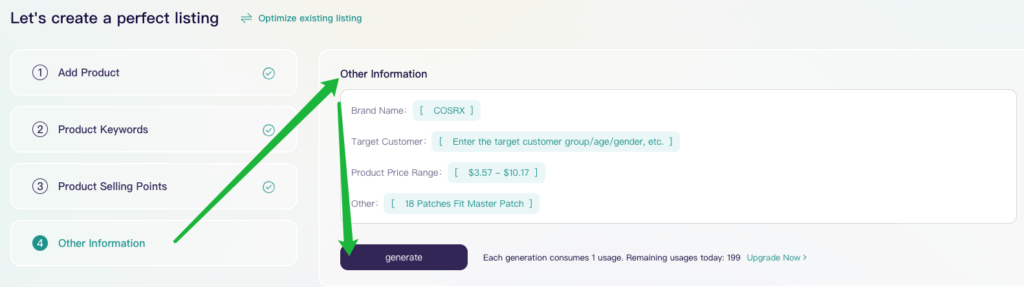
V. Generate the Listing
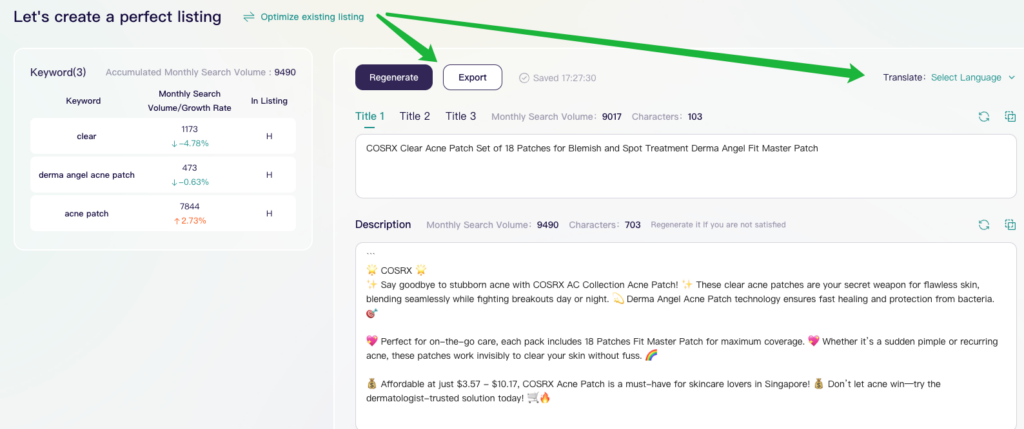
4. View and Manage Generated Listings
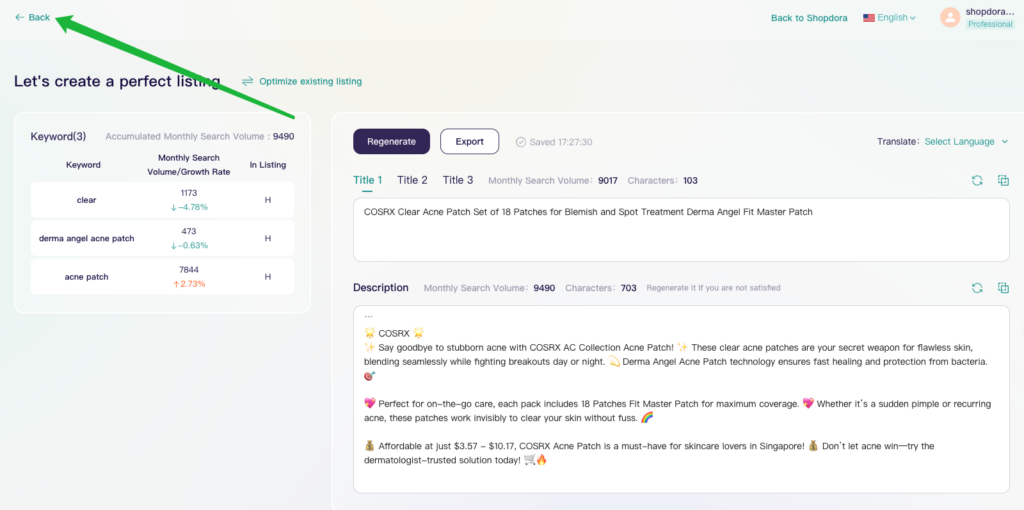
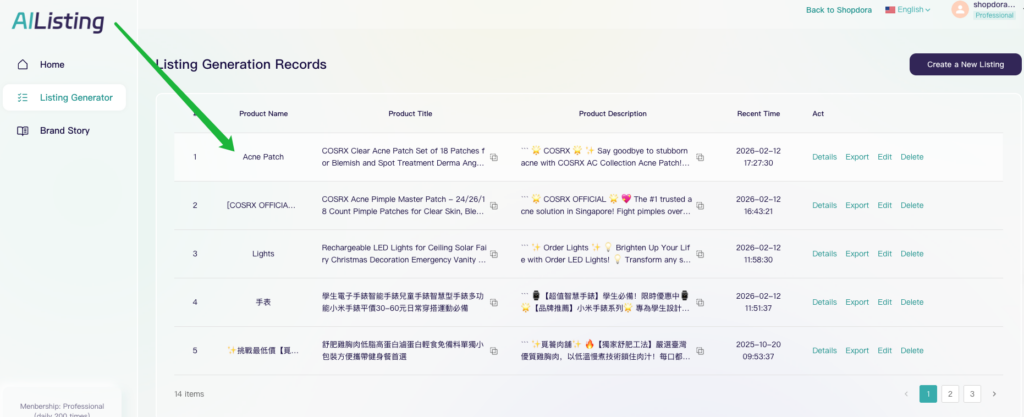
- Click Back in the upper-left corner to access all generated listing records.
- Listings can be copied, edited, or exported at any time for further use or optimization.