

When analyzing a product or Shop in Shopdora, you’ll often need the product Links or Shop Links. These links are required to look up performance data or run competitive analysis.

Below is how to correctly obtain them.
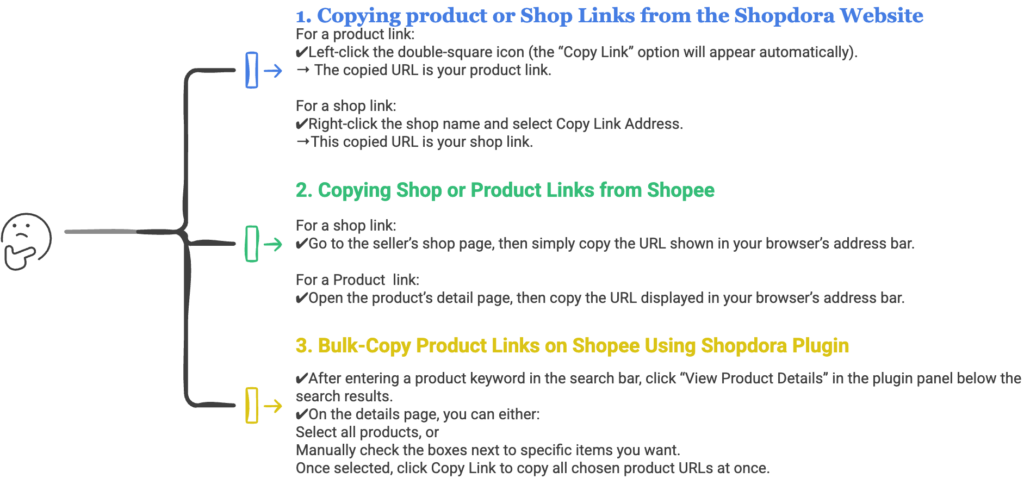
1. Copying product or Shop Links from the Shopdora Website
When using Shopdora’s Product Research, you can easily see the product ID and shop name.

However, to get the product link or shop link, follow these steps:
- For a product link:
- Left-click the double-square icon (the “Copy Link” option will appear automatically).
→ The copied URL is your product link.
- Left-click the double-square icon (the “Copy Link” option will appear automatically).

- For a shop link:
- Right-click the shop name link and select Copy Link Address.
→This copied URL is your shop link.
- Right-click the shop name link and select Copy Link Address.

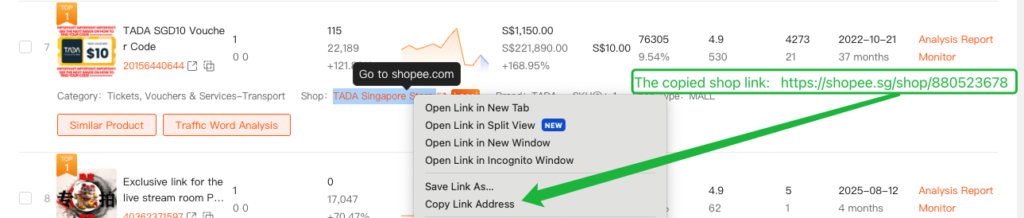
🔍 Tip: How to Tell Product Links and Shop Links Apart in Shopdora Website
- Product link: The URL usually contains “product”.
- Shop link: The URL usually contains “shop”.
👉 Always double-check before pasting—using the correct link ensures accurate search results!

2. Copying Shop or Product Links from Shopee
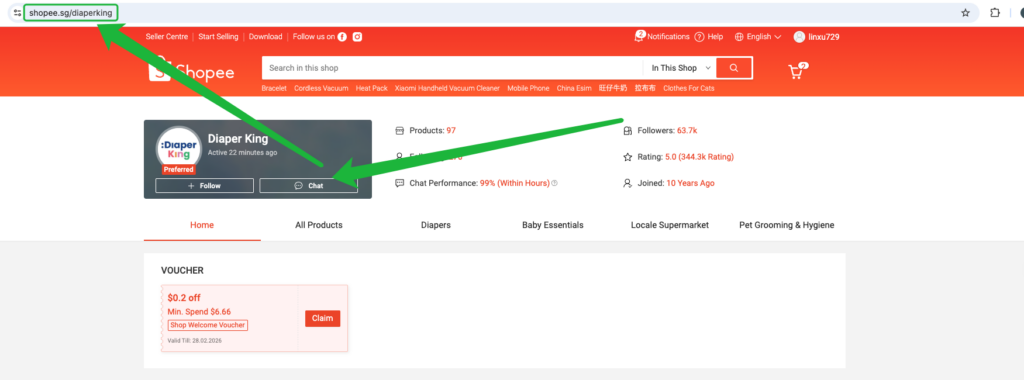
- For a shop link:
- Go to the seller’s shop page, then simply copy the URL shown in your browser’s address bar.
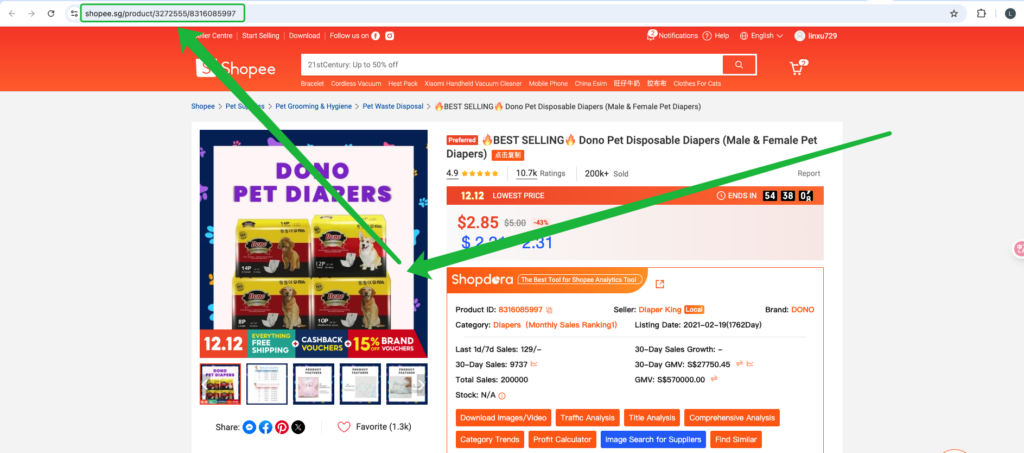
- For a Product link:
- Open the product’s detail page, then copy the URL displayed in your browser’s address bar.
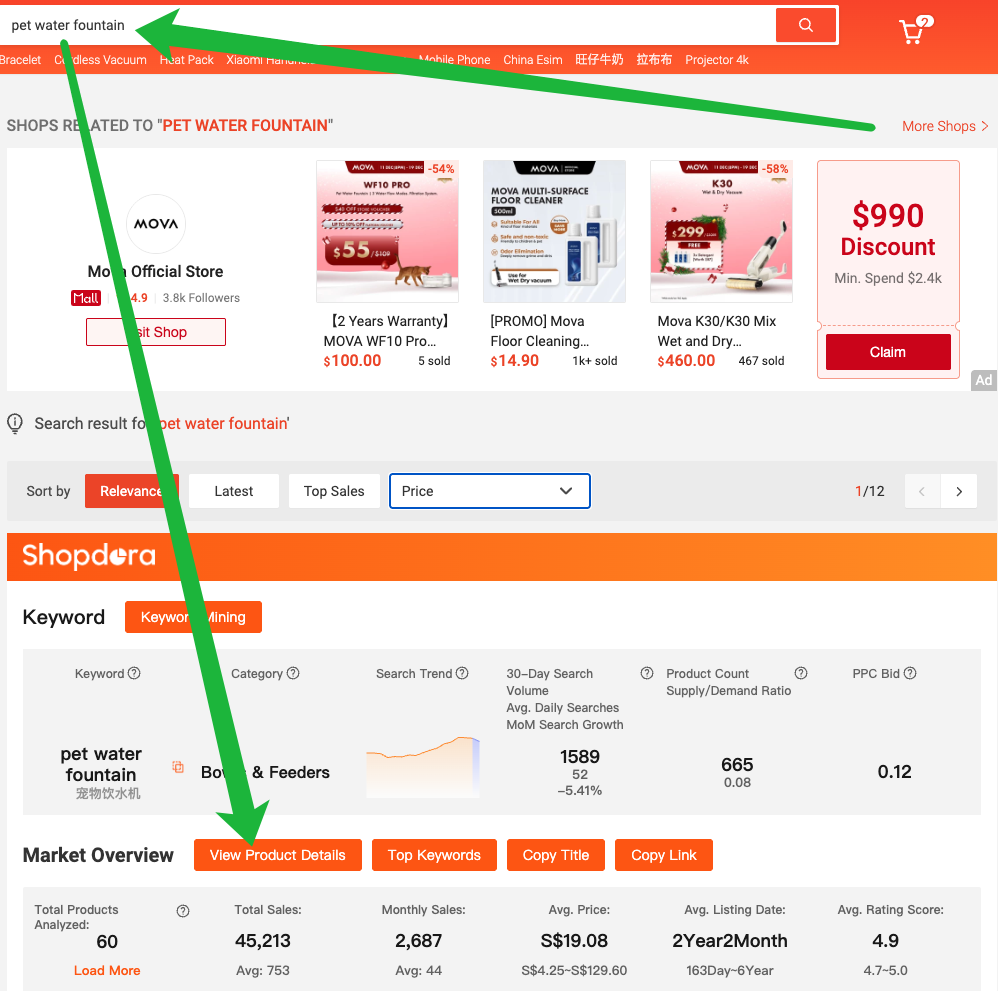
3. Bulk-Copy Product Links on Shopee Using Shopdora Plugin
✅ After entering a product keyword in the search bar, click “View Product Details” in the plugin panel below the search results.
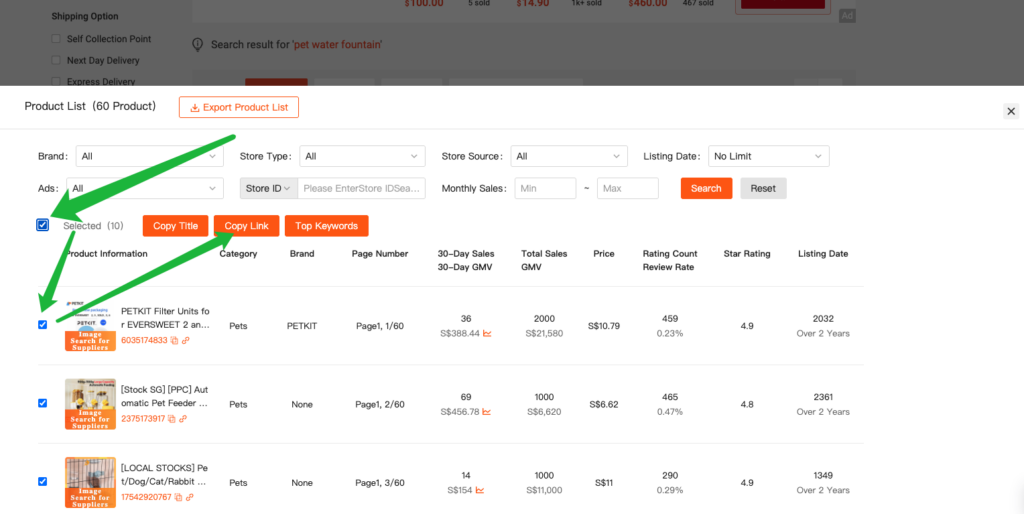
✅ On the details page, you can either:
- Select all products, or
- Manually check the boxes next to specific items you want.
Once selected, click Copy Link to copy all chosen product URLs at once.